
Galaxy Watch 8 & Watch 8 Classic now let users navigate without carrying a smartphone. Thanks to offline maps support, you can access routes, directions, and saved areas directly from your wrist, even without mobile data. To use the feature, you have to download the map app from the Play Store. For the Galaxy Watch 8 series, you can use Google Maps, Citymapper (not in all countries), What3words, and more services for offline maps. For Wear OS, Google has introduced its native Google Maps app with all its original features.
Offline Maps on Galaxy Watch 8 Series
1. Google Maps (Pre-Installed)
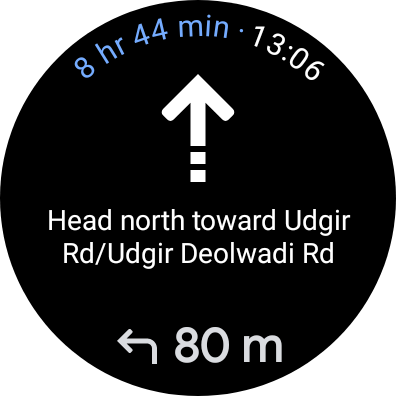
The Here WeGo app and Apple Maps are not available for Wear OS watches. Apple Maps is limited to Apple Watches, and, interestingly, Here WeGo was available for Samsung’s Tizen watches, but it never launched for Wear OS watches. Google’s Google Maps is pre-installed on these watches. It supports live location, turn-by-turn navigation, voice commands, and offline maps. All these services are free to use.
2. Third-party apps
Samsung’s Galaxy Watch 8 & Watch 8 Classic run on Wear OS 6, powered by One UI Watch 8 version, which gives users access to the full Google Play Store. This means you are not limited to just one or two map apps; you can explore several third-party navigation options depending on your region and preference.
Citymapper, for example, is excellent for urban commuters in supported cities, offering real-time transit data alongside walking and cycling directions. Sadly, it doesn’t support many countries, including India and China. If you are living in the US, Canada, or European countries, then it is one of the best navigation apps. What3words is another useful service, especially in areas where traditional addresses are unreliable.
How to Download Offline Maps
To use most map apps, you have to connect them to an internet connection. If you are using the LTE variant on the Galaxy Watch 8, then you can use it to get live location data. If you are using a Wi-Fi-only model, you should connect your Galaxy Watch to your Galaxy phone. Once you have downloaded the offline maps in advance, your watch can navigate without any active internet connection during your trip.
To download offline maps on Google Maps for the Galaxy Watch 8 series, open the Google Maps app on your paired smartphone. After that, go to your profile icon, tap Offline Maps, and select your area. The downloaded map data syncs to your smartwatch & stays available even when you are away from your phone or in areas with poor signal. The mode is really helpful for roaming in new cities, outdoor activities, traveling abroad, or simply exploring areas with weak network coverage.
The rival watches like Coros Pace 4 & Amazfit T-Rex 3 Pro in the same price range are offering more features like route planning, offline maps, and missed turn alerts. Samsung should also work on its navigation features to compete with rival watches.
Benefits of Offline Maps on Galaxy Watch 8
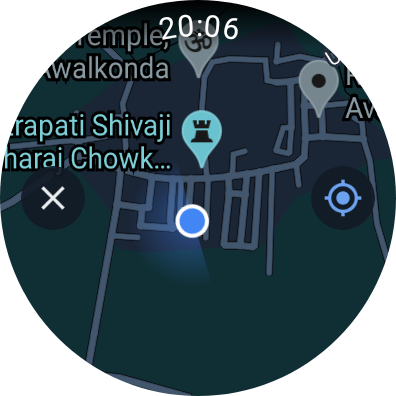
The major benefit of using an offline map is that in a remote area, you don’t have to rely on a network to access the current location and next route. When you hike or go climbing, the offline mode is the best option to keep yourself on the correct route.
In a new update, Google has made it possible to leave your smartphone at home and use the Maps app without it. This method works for most functions, but there are some limitations. Battery consumption is one factor to keep in mind, because in GPS navigation, the watch can drain your battery faster than usual, so it is a good idea to lower the screen brightness and disable always-on display during long navigation sessions.
You can install all these offline map apps from the Google Play Store. They are all free, but some apps require subscriptions to unlock a few extra features. For most everyday users, the free versions of Google Maps and Citymapper are more than enough to handle daily navigation needs on the Galaxy Watch 8 & Watch 8 Classic.




Leave a comment