

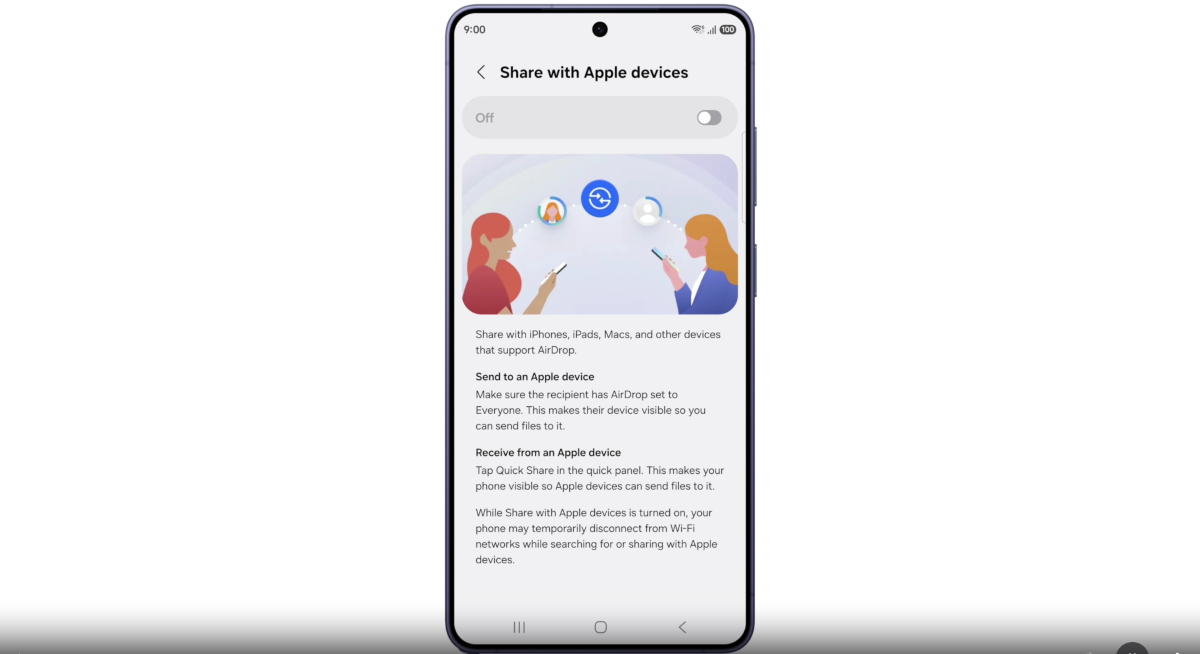
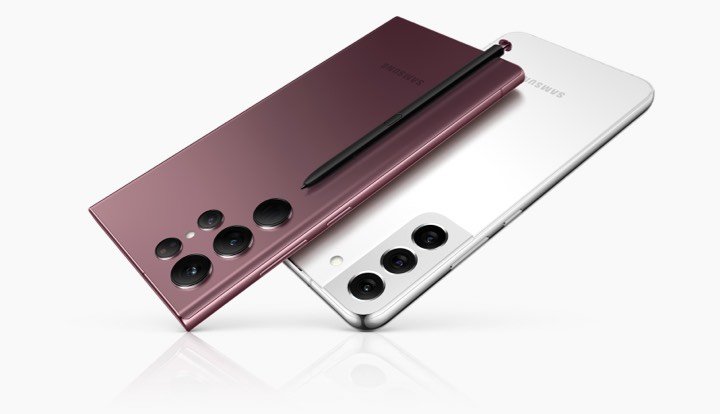
Samsung has introduced AirDrop support on the Galaxy S26 Ultra via Quick Share. In this guide, we will show you how to use AirDrop on the Galaxy S26 Ultra to send and receive files with an iPhone easily. With this decision, the cross-platform barrier has been removed, and both Samsung and Apple users can now share files with each other.
Galaxy S26 Ultra users can now send and receive files via Quick Share to iPhone users using Apple AirDrop. It is a welcome move and will benefit both users.
What is AirDrop
AirDrop is a file-sharing service for Apple users. With compatible iPhones, iPads, or other supported Apple devices, users can send or receive files. It was previously limited to Apple users, but after changes in regulations in the EU region, Apple has opened it up to other smartphone brands.
Benefits of AirDrop Support on Galaxy S26 Ultra
If your family member or friend has an iPhone and you are using a Samsung phone, it has now become easy to share files. Previously, users had to use cloud services like Google Drive or other platforms to send and receive files, which required third-party apps or services. Now, with AirDrop support, users don’t have to rely on any cloud services.
Software Requirements to Use AirDrop
In this guide, I will share easy steps to activate Apple AirDrop sharing on your Galaxy S26 Ultra. First, you need to ensure compatibility and support for this feature. To enable AirDrop, you must download and install the new software version S948NKSU1AZCF on your Galaxy S26 Ultra. After that, make sure to update Google Play Services to version v26.11.xx.
How to Enable Apple AirDrop Service
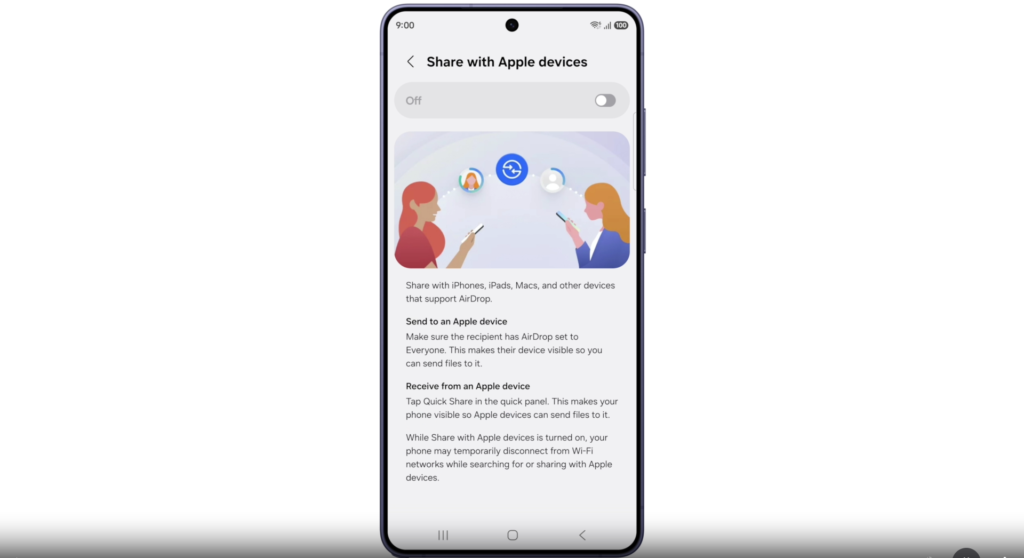
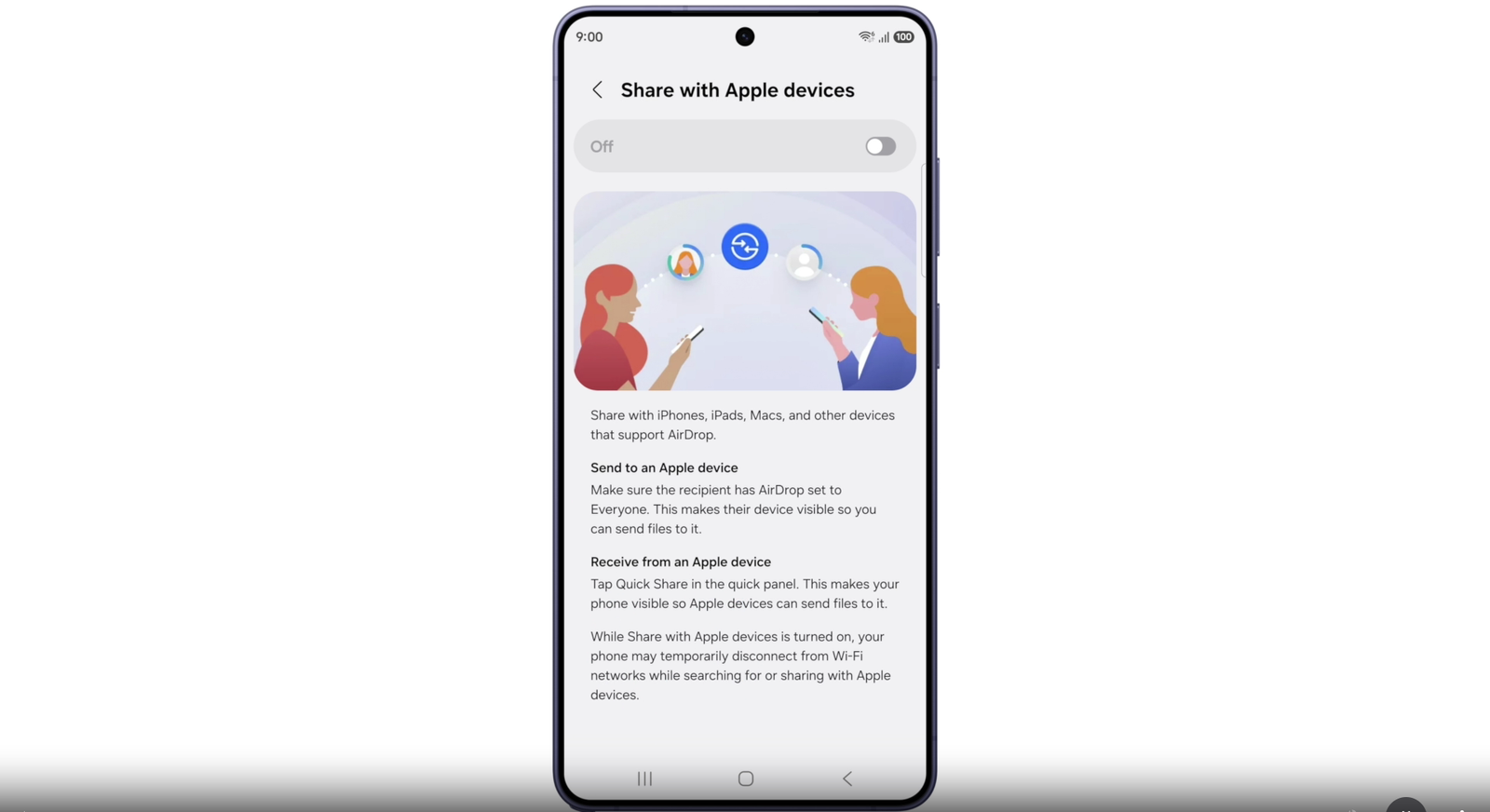
After a successful update, new settings will be added to Quick Share on the Galaxy S26 Ultra. To enable it, follow these steps:
- Click on Settings
- Tap Connected Devices
- Tap on Quick Share
- Click Share with Apple Devices
- Enable the toggle
This will successfully activate AirDrop support on the Galaxy S26 Ultra, and it will be ready to share files from Samsung to iPhone.
How to Send Files to an iPhone User
To send files to an iPhone user, the recipient must enable AirDrop. After that, the recipient should set it to “Everyone” so anyone can send files.
Now, to send a file from the Galaxy S26 Ultra, select any file and choose the iPhone user to send it. To receive the file on an iPhone, the user must accept it to save it on their device.
How to Receive Files on Galaxy S26 Ultra
To receive files from an iPhone user, enable Quick Share on the Galaxy S26 Ultra and set visibility to everyone. After that, when an iPhone user sends a file, accept it on your device and save it.
How AirDrop Works on Galaxy S26 Ultra
AirDrop on your device uses Wi-Fi and Bluetooth to send and receive files. It is integrated with Quick Share to maintain speed and avoid disruption while sharing large files.
What to Do If It Fails to Share
- Make sure both devices have Wi-Fi and Bluetooth enabled while sending and receiving files.
- Keep both devices close to avoid any disruption in file sharing.
- In Quick Share settings, set visibility to “Everyone” and check whether it is limited to 10 minutes. If needed, enable it again.
After Apple Music and Apple TV apps, it is another Apple service accessible for Android users, including Samsung Galaxy devices. Now, you can share your files with any iPhone user from your Galaxy S26 Ultra. Samsung has confirmed that support will also come to other Galaxy devices, including the Galaxy S25 Ultra and Galaxy Z Fold 7.



Leave a comment