


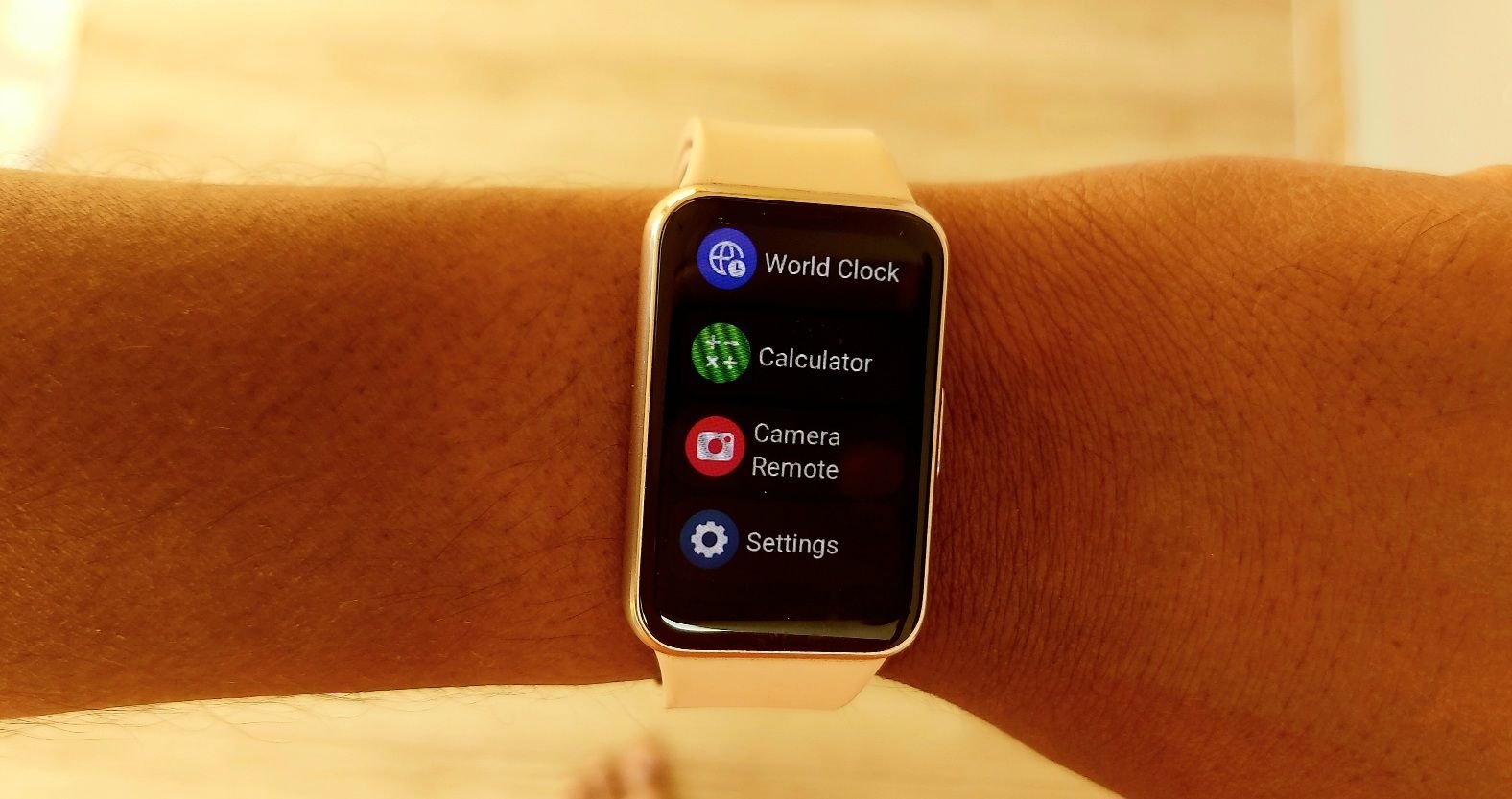
Did you know you can control your phone camera with the Galaxy Fit 3? If you have forgotten, I can remind you. Yes, with Camera Remote on Galaxy Fit 3, users can control their Samsung phone camera with the new fitness band. The feature was first introduced on the Galaxy Fit 2 in 2022 via software update, two years after the band’s launch, but it was largely unknown because the product had already been discontinued a few years back.
Many users are confused about its features, availability, and support on the fitness tracker. In this guide, I will answer all your questions and tell you how to use the Galaxy Fit 3 Camera Remote feature.
Camera Remote on Galaxy Fit 3
You don’t need a flagship Galaxy phone to use it; any Galaxy phone will work. You can use your flagship Galaxy S26 Ultra or budget-level Galaxy A16 smartphone to connect with Galaxy Fit 3 and use the Camera Remote tool. On Galaxy Watch, Samsung has enabled this feature on its flagship Galaxy smartphones, but here all Galaxy phones can use it.
How to Use Camera Remote
To use the Camera Remote on Fit 3, follow these steps:
- Go to the apps and services list.
- Now scroll down until you see the Camera Remote function.
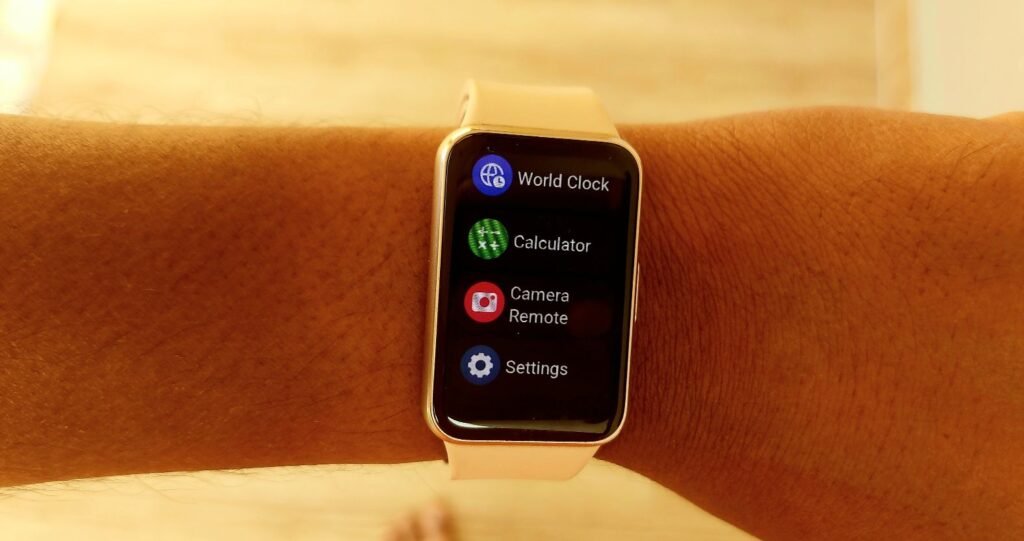
Don’t be confused; it is the same controller app you see on the Galaxy Watch 7 or Watch 8. On the Galaxy Watch, it is named the Camera Controller app, and here, on the fitness tracker, Samsung has changed its name. The reason may be differences between the features of the two app versions.
- Now, click on the function to open the camera on the Galaxy Fit 3
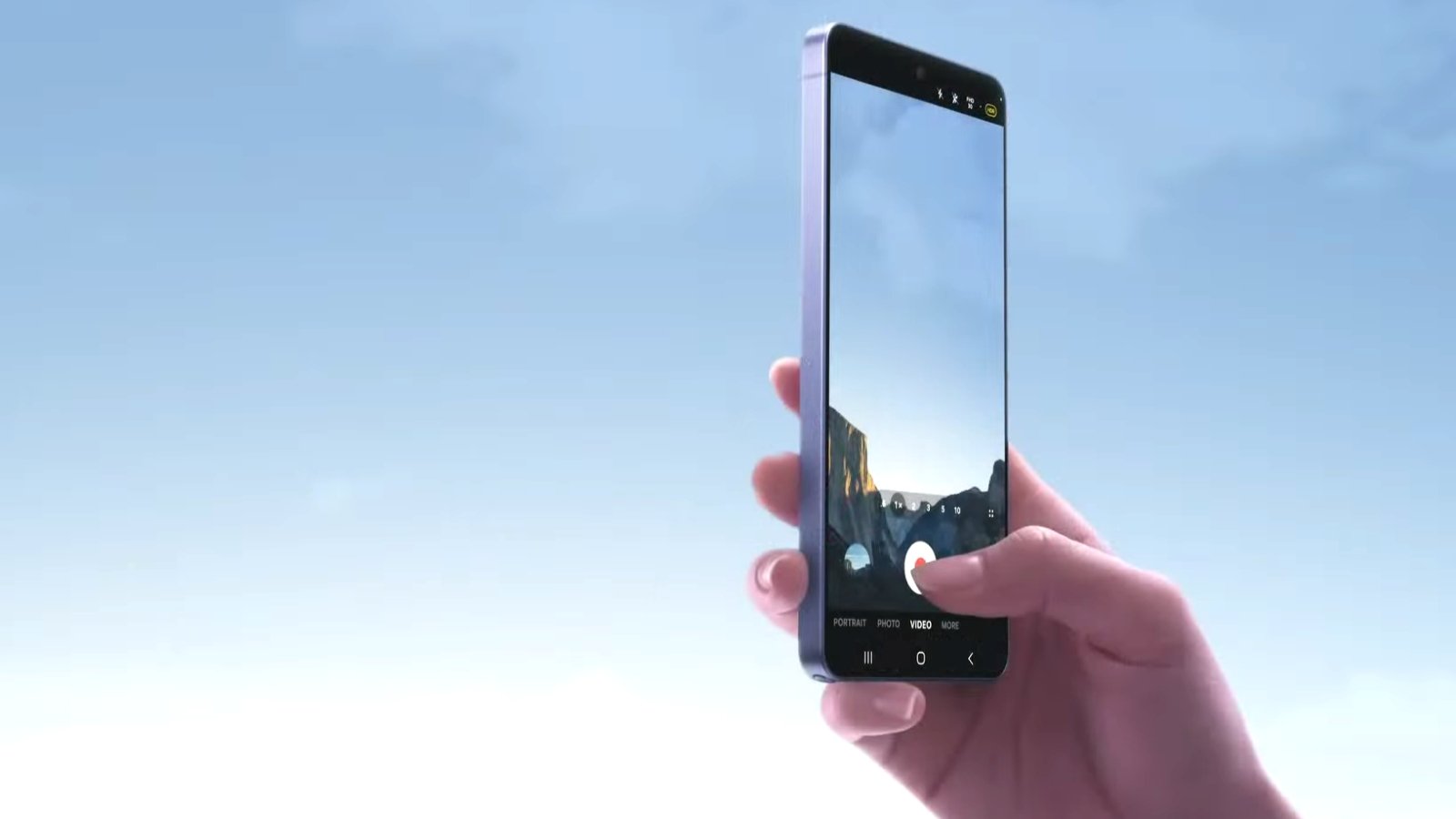
- You can see that the phone’s camera has started automatically.
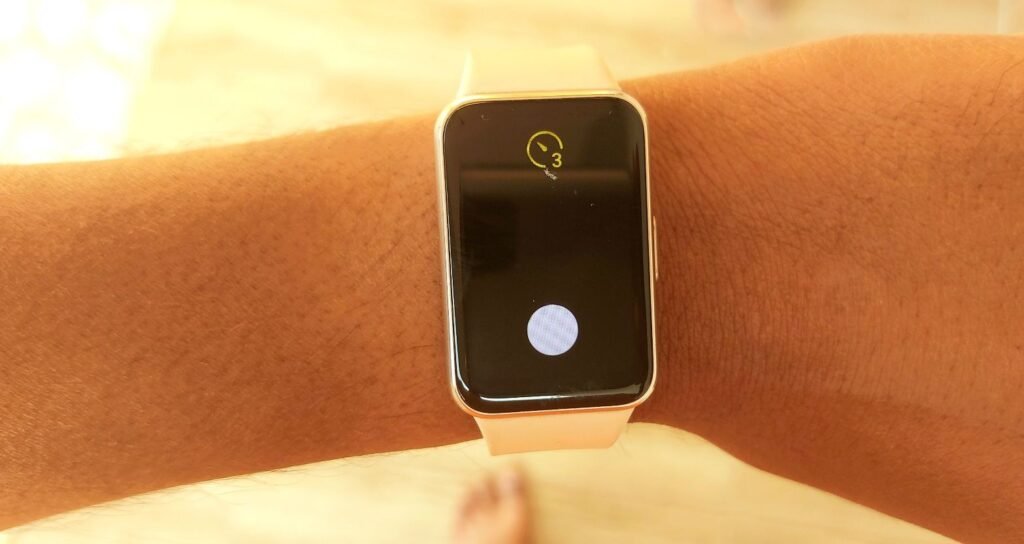
- Finally, click on the capture button to take a photo, group photo, or selfie.
Tip to Use Camera Remote on Galaxy Fit 3
Note that the function will not switch the camera. To do that, you need to change it on the phone manually, then capture an image from the Galaxy Fit 3. You can also record videos from both cameras.
Galaxy Watch vs Galaxy Fit 3
The Camera Controller function on the Galaxy Watch series differs from this one. The smartwatch function only supports high-end premium phones, such as Galaxy S23, S24, S25, S26, Fold 4, Fold 5, Flip 5, Fold 6, Fold 7, Flip 6, and Flip 7. The smartwatch version has more features, such as a better timer and an auto-switch camera.
On Galaxy Fit 3, with the Camera Remote app, you can only click a photo, and you can’t switch between the front and back cameras. It also doesn’t support live preview, but it has a basic timer (3 seconds), so Samsung’s fitness tracker includes a simple controller for capturing photos.
Does it Support Other Android & Apple Devices?
No, you cannot use Camera Remote on other Android phones or Apple iPhones. It is an exclusive feature for Samsung Galaxy phones. With other Android phones, you can connect and use some Galaxy Fit 3 features, but not Camera Remote, and you cannot pair it with iPhones.
Camera Remote Not Working? Try These Fixes
Check Bluetooth Connection
If the Camera Remote function is not working on the Galaxy Fit 3, then you should check the Bluetooth connection. Also, if the distance between your phone and the fitness tracker is longer than usual, Bluetooth may fail to connect, so make sure you are within range.
Use Default Camera
The function only works with the default Samsung camera app. It doesn’t support third-party camera apps.
Reconnect Your Band
Disconnect and reconnect the band from the phone settings to solve the issue.
Restart Your Phone and Band
Sometimes restarting both the phone and the fitness band solves the Camera Remote problem.
Update Software
Samsung regularly releases new software for the Galaxy Fit 3, so make sure you have installed the latest version on both the smartphone and the band.
Why is there no Camera Control app on my Galaxy Fit 3?
This is a common question many users ask about their Galaxy Fit 3. Why is the Camera Control app not available or missing on the Galaxy Fit 3? The clear answer is that the app is not supported on non-Samsung phones, so the Camera Remote option will not appear.
Supported Devices
Samsung Galaxy phones
It only works and is compatible with Galaxy phones running on the One UI 6.0 software version.
Not Supported Devices
Other Android phones
Apple iPhones
Huawei phones
The Galaxy Fit 3 Camera Remote app is a lightweight and practical tool that lets you handle your photography. It is not as advanced as the Galaxy Watch app or the Xiaomi Smart Band 10 app, but it still provides the essential features you need.


Leave a comment